Getting Started
Begin by visiting the resource on BuiltByBit and downloading the theme. You must purchase the resource before you can download it.
Prerequisites
Installation
Appearance Settings
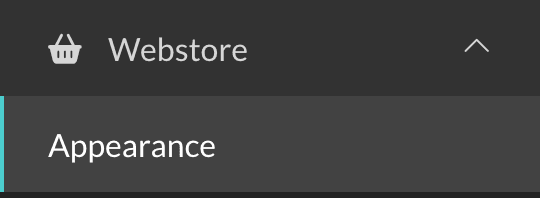
In the sidebar of your Tebex dashboard, navigate to Webstore → Appearance.
Create a Custom Template
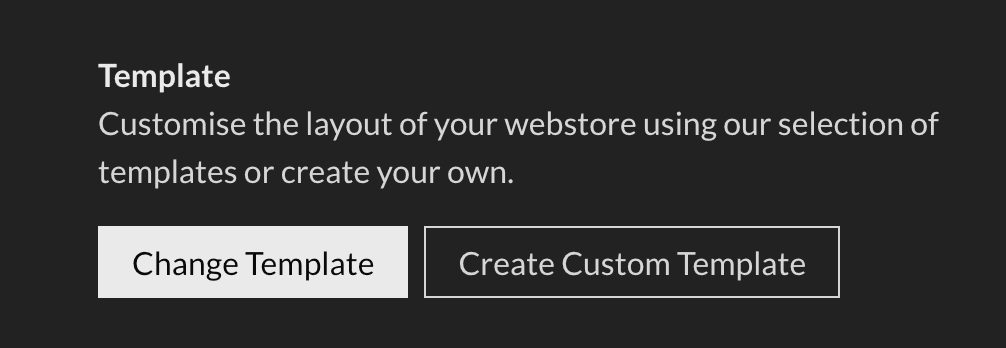
Once you’re on the Appearance page, scroll to the Template section and click Create Custom Template.
Confirm Template Creation
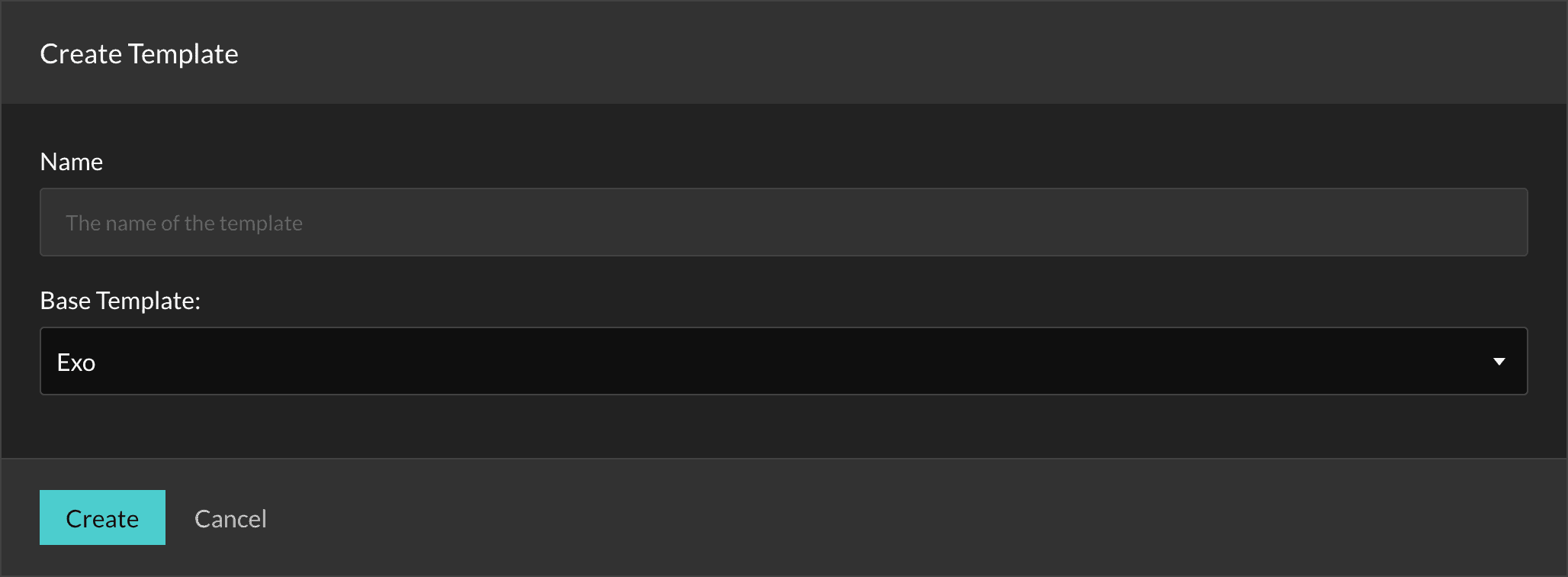
A popup will appear asking for a template name. Choose any name you prefer, such as "DonutSMP Theme".
For the Base Template, select Exo (or any other free base template).
Click Create to continue.
Replace the Default Schema
After creating your custom template, you will be taken to the template editor.
Open the schema.json file from the downloaded theme, copy its entire contents, then click Change Schema in the Tebex editor.
Paste the copied schema and click Save.

Replace Theme Files
Go through each file included in the downloaded theme ZIP. For every file, find the corresponding file in the Tebex template editor, then copy and paste the contents from the ZIP into the editor.
Repeat this for all files in the theme package.
Upload Required Assets
Some theme assets are not part of the base template and must be uploaded manually.
In the Tebex template editor, go to the Assets tab, click Add, and upload the missing files from the ZIP.
Publish the Template
Once all files and assets have been replaced or uploaded, click the Publish button in the upper-right corner of the template editor to apply the template to your store.
Create a Custom Theme
Return to the Appearance page in your dashboard.
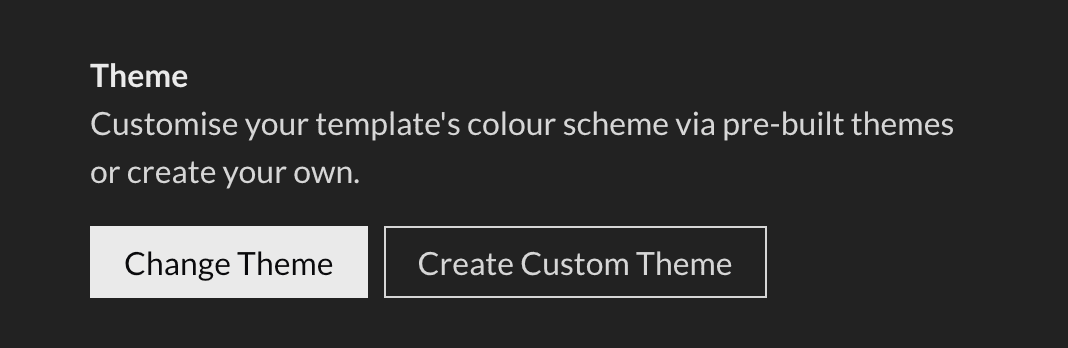
In the Theme section, click Create Custom Theme.
Confirm Theme Creation
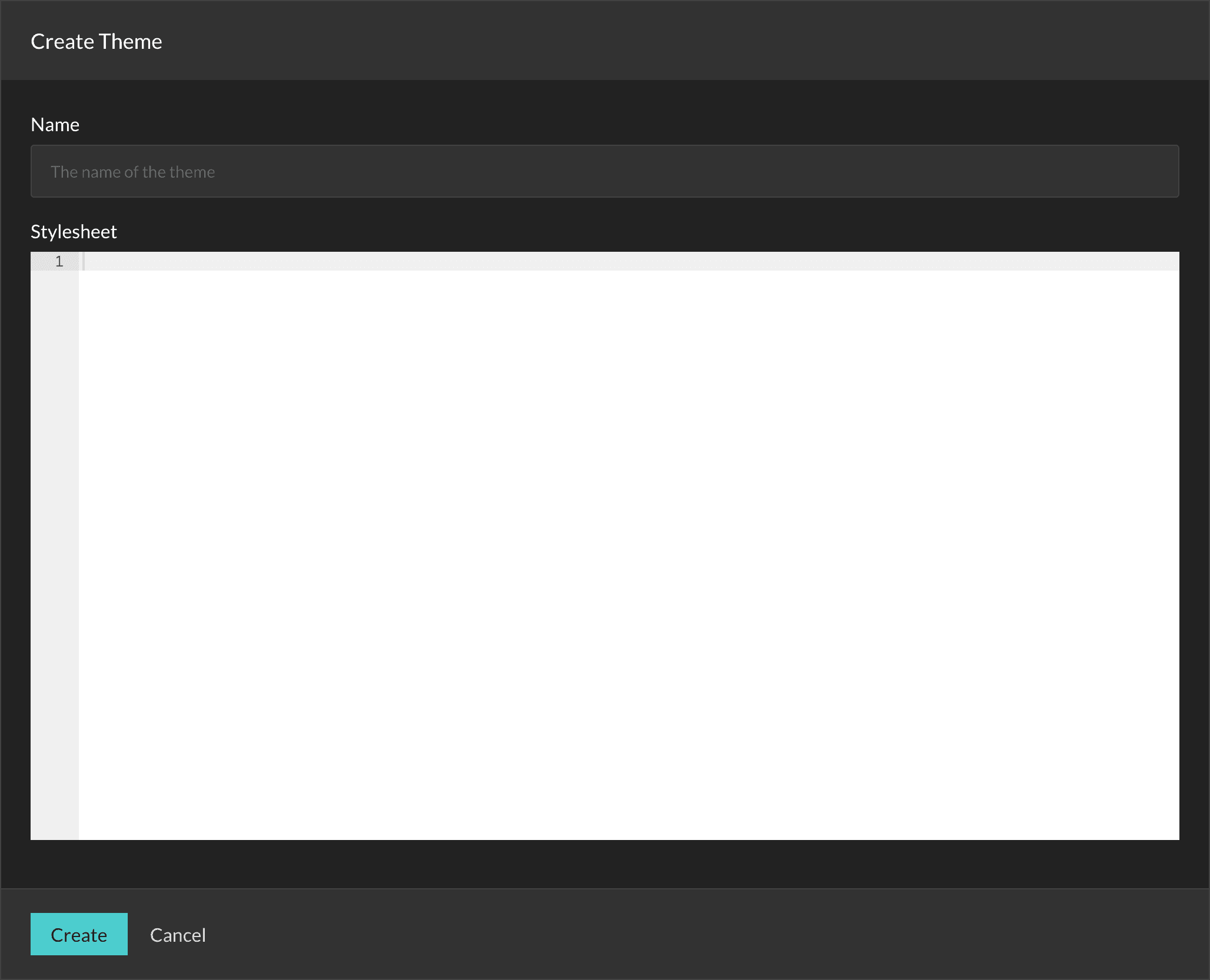
A popup will ask you to name your theme. Use any name you like (example: "DonutSMP Theme").
In the stylesheet section, paste the contents of the .css file from the downloaded theme. Click Create to continue.
Apply the Theme
After creating the custom theme, click Change Theme in the Theme section. Find the theme you just created and click Activate.
Once activated, your Tebex store will now use the DonutSMP theme!
Troubleshooting
Need Help?
If you run into issues or need assistance installing the theme, join our Discord community:
https://discord.gg/pikzstudios